
Welcome to Liverly. This page walks you through setup, explains what the app asks (and why), and shows you around the home screen so you can log your first meal with confidence.
What Liverly Does
Liverly is built around one simple loop:
- Scan your meal — take a photo, scan a label or barcode, or just describe what you ate.
- Get a Liver Score — Liverly breaks down added sugar, saturated fat, calories, and fiber, scored against your personal budgets.
- Log it to your diary — your daily totals update automatically.
- See the bigger picture — weekly trends, insights, and a doctor-ready PDF report (these require Liverly Pro).
You don’t need to weigh food or look anything up in tables. The app does the math; you just eat and log.
Tip: Liverly is an information tool, not medical advice. Always follow the numbers and guidance your care team gives you.
Setting Up Your Profile
The first time you open Liverly, a short setup (about 2–3 minutes) personalizes everything to you. Here’s what it asks and why it matters:
| Question | Why it matters |
|---|---|
| What brings you to Liverly? | Sets your primary goal so recommendations focus on what you care about |
| What’s your liver condition? | The most important step — your diagnosis (fatty liver, MASH, fibrosis, cirrhosis, and more) determines your daily added sugar, saturated fat, calorie, and fiber budgets |
| Do you manage any of these conditions? | Type 2 diabetes tightens your added-sugar budget; high cholesterol tightens saturated fat |
| What’s your current weight? | Your calorie budget and weight-loss goal are calculated from it (you can skip this and add it later) |
| Complications | Only asked with cirrhosis — complications like ascites change your sodium and protein guidance |
A few lifestyle questions follow (your biggest struggles, how often you eat out) so the app can tailor its tips. To see exactly how your answers become daily limits, read How Your Limits Are Calculated.
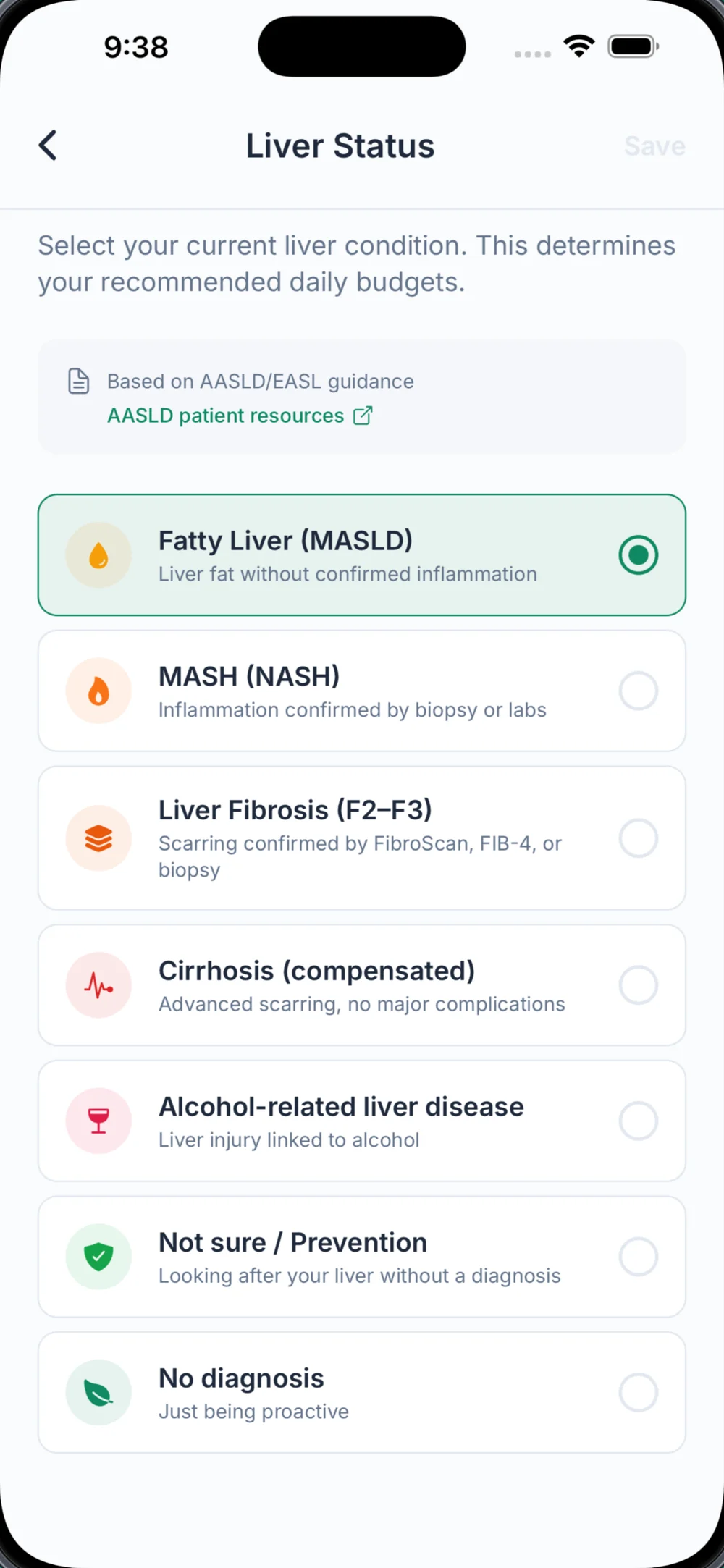 Capture: onboarding step "What's your liver condition?" with the condition options visible
-->
Capture: onboarding step "What's your liver condition?" with the condition options visible
-->
Don’t have a firm diagnosis? No worries — just choose Not Sure and Liverly uses sensible general defaults. You can update your condition anytime in Settings, or estimate your fibrosis risk from a recent blood test with the built-in FIB-4 Calculator.
Trying a Demo Scan
Before you even create an account, setup lets you try the analyzer: snap a photo of whatever you’re eating, or type a description, and you’ll get a full liver-focused breakdown. It’s the best way to see what the app can do.
Creating Your Account
Near the end of setup you’ll reach the Save your profile screen. Your account keeps your liver profile, diary, and history synced and backed up. Choose one of:
- Continue with Google
- Continue with Apple (iOS only)
- Continue with Email — enter your email and a password of at least 6 characters, then tap Create Account
Already have an account? Tap Log in at the bottom of the same screen.
The Home Screen at a Glance
After setup, the app opens to your Daily Diary — home base for everything you log. From top to bottom:
- Week calendar — tap any day to view or edit that day’s log.
- Nutrient Budget — your daily progress for added sugar, saturated fat, and calories against your personal budgets, plus your fiber target. Pro users can add optional nutrients like carbs and cholesterol.
- Fluid Intake — quick-add water toward your hydration goal, and count your coffee. See Water & Coffee.
- Meal sections — Breakfast, Lunch, Dinner, and Snacks, each with an add button offering Scan, Say or Type, Recipes, Water, Manual, and Saved. See Your Daily Diary.
- Streak — log at least one meal a day to build your streak, with milestones at 3, 7, 14, 30, 60, and 100 days.
- Weight quick log — log today’s weight in one tap. See Weight Tracking.
The tab bar along the bottom gets you to the camera, your recipe library (Recipes), and your progress charts (Progress & Insights).
Changing Your Language
Liverly works in 13 languages — English, Spanish, French, German, Portuguese, Arabic, Italian, Japanese, Korean, Dutch, Polish, Turkish, and Chinese (Traditional). Everything switches over, including what Liverly says when it analyzes your meals.
To change it, go to Settings → Language and pick from the list.
Tip: Switching to or from Arabic flips the entire layout direction, so the app will ask to restart to apply it.
Your First Scan
Ready to try it for real?
- Tap the camera in the tab bar.
- Point your phone at your plate and tap the capture button.
- In a few seconds you’ll see your Liver Score and nutrient breakdown.
- Happy with it? Tap Add to Diary and pick the meal.
The free plan includes 5 analyses per day (photo, label, barcode, and voice/text combined), resetting at midnight — plenty to get started. For the full walkthrough, including tips for better results, head to Scanning Meals. For plan details, see Subscription & Billing.